# Getting started
How to add a PDF Blocks action to a Power Automate flow and connect it to your account with an API key. No code, and nothing is stored.
PDF Blocks is a connector for Power Automate, Power Apps, and Azure Logic Apps. This guide is focused on Power Automate, but you can apply most of it to Azure Logic Apps as well.
## Requirements
To start using PDF Blocks, you need:
- A paid Power Automate plan, with either a per-user plan or a per-flow plan.
- A PDF Blocks account. If you don't have one, [create a free account](https://accounts.pdfblocks.com/signup): the Free plan needs no credit card.
## Your API key
You can get your API key in your [dashboard](https://accounts.pdfblocks.com).
This API key only gives the holder (for example your Power Automate account) access to the PDF Blocks service. Someone with the API key can't access your documents or private input data because we don't store your documents or data. Anyway, keep it safe and don't post it in public.
You can revoke a key and generate a new one at any time from the dashboard.
## Step 1: Choose PDF Blocks
In a Power Automate flow, add a new action. In the **Add an action** panel, search for PDF Blocks.
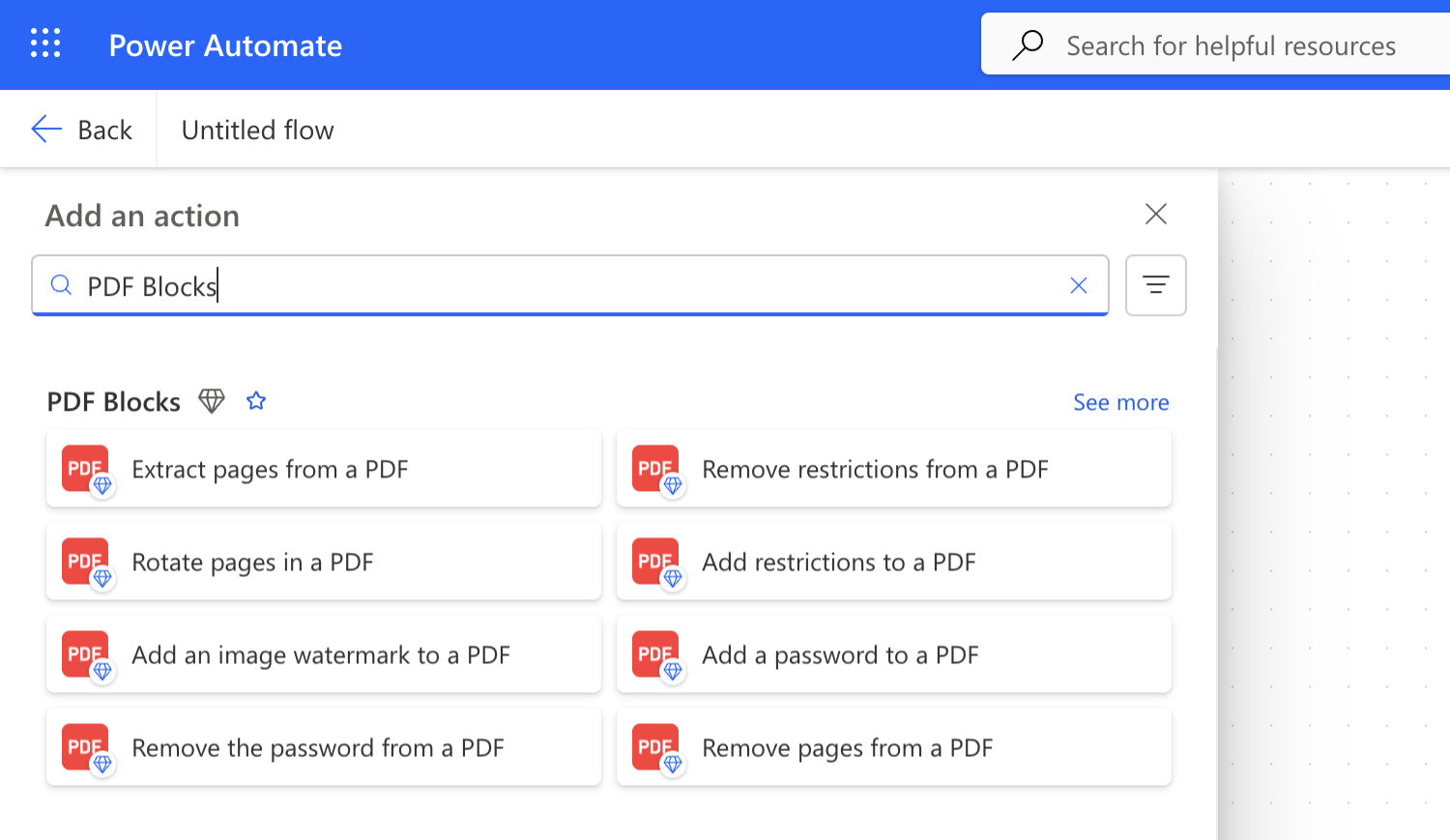 The search doesn't always rank PDF Blocks first, so scroll down the results until you reach the **PDF Blocks** group. If you don't see the action you want, select **See more** in that group to list every PDF Blocks action, then pick the one you need.
## Step 2: Create a connection
The first time you add a PDF Blocks action to a flow, Power Automate asks you for some parameters to create a connection:
The search doesn't always rank PDF Blocks first, so scroll down the results until you reach the **PDF Blocks** group. If you don't see the action you want, select **See more** in that group to list every PDF Blocks action, then pick the one you need.
## Step 2: Create a connection
The first time you add a PDF Blocks action to a flow, Power Automate asks you for some parameters to create a connection:
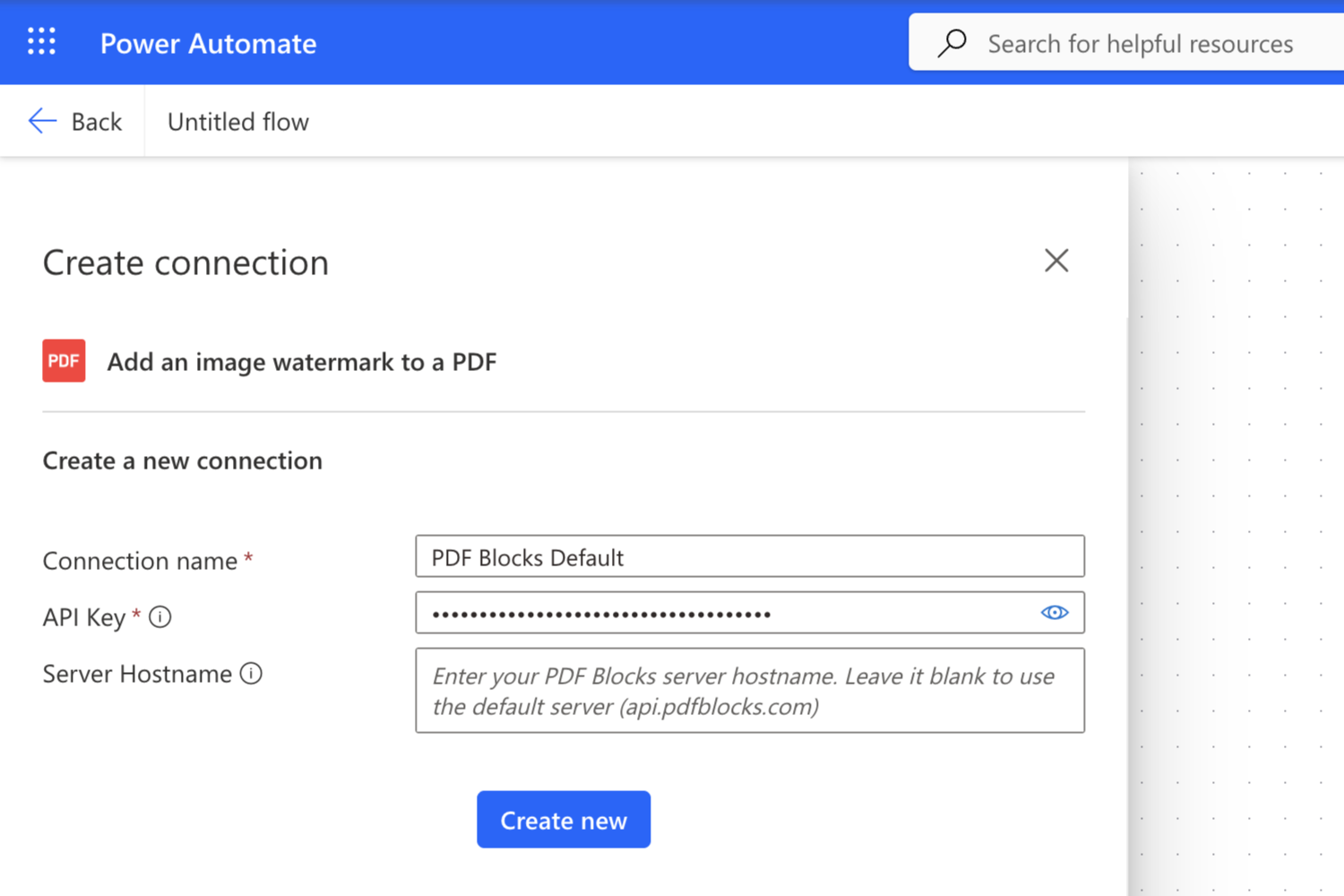 Connection parameters:
- In **Connection name**, write any string you want to use as the name of the connection. In the example above we used "PDF Blocks Default".
- In **API Key**, write your PDF Blocks API Key. As you type it, it is masked by dots like any other password.
- In **Server Hostname**, leave it blank to use the default server (`api.pdfblocks.com`).
Press **Create new** to create your connection. After the connection is created you are ready to start using PDF Blocks in any of your flows.
### Process documents in a specific region
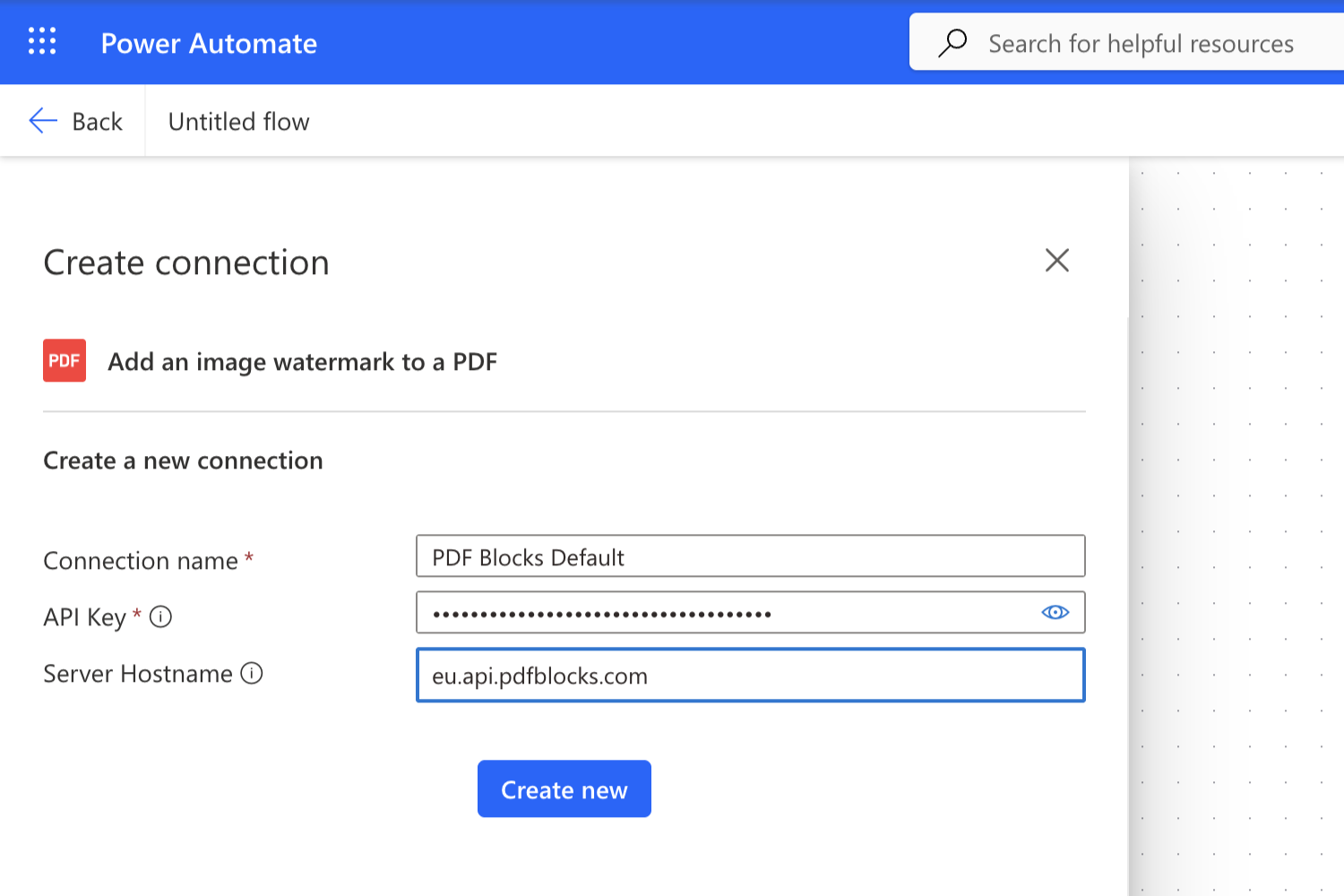
Leave **Server Hostname** blank and PDF Blocks routes each request to nearby infrastructure for the lowest latency. To keep processing in a specific jurisdiction, enter that region's hostname instead. For example, to process exclusively on European servers, write `eu.api.pdfblocks.com` in the **Server Hostname** box before creating the connection:
Connection parameters:
- In **Connection name**, write any string you want to use as the name of the connection. In the example above we used "PDF Blocks Default".
- In **API Key**, write your PDF Blocks API Key. As you type it, it is masked by dots like any other password.
- In **Server Hostname**, leave it blank to use the default server (`api.pdfblocks.com`).
Press **Create new** to create your connection. After the connection is created you are ready to start using PDF Blocks in any of your flows.
### Process documents in a specific region
Leave **Server Hostname** blank and PDF Blocks routes each request to nearby infrastructure for the lowest latency. To keep processing in a specific jurisdiction, enter that region's hostname instead. For example, to process exclusively on European servers, write `eu.api.pdfblocks.com` in the **Server Hostname** box before creating the connection:
 The available regions, and the hostname to enter for each, depend on your plan:
| Region | Server Hostname | Available on |
| --- | --- | --- |
| Global (default) | _Leave blank_ | All plans |
| United States | `us.api.pdfblocks.com` | Starter and Business |
| European Union | `eu.api.pdfblocks.com` | Starter and Business |
| United Kingdom | `uk.api.pdfblocks.com` | Business |
| Canada | `ca.api.pdfblocks.com` | Business |
| Australia | `au.api.pdfblocks.com` | Business |
| Japan | `jp.api.pdfblocks.com` | Business |
| India | `in.api.pdfblocks.com` | Business |
| Brazil | `br.api.pdfblocks.com` | Business |
| US HIPAA | `hipaa.api.pdfblocks.com` | Business (requires a signed BAA) |
See [Regions and data residency](/docs/api/regions-and-data-residency) for full details on each endpoint.
## Getting help
Need a hand? Open a support ticket from **Support** in your [dashboard](https://accounts.pdfblocks.com). Describe the issue (you can attach files) and we'll reply in the same thread, with email notifications as the conversation continues.
If you can't access your dashboard, email us at [support@pdfblocks.com](mailto:support@pdfblocks.com).
The available regions, and the hostname to enter for each, depend on your plan:
| Region | Server Hostname | Available on |
| --- | --- | --- |
| Global (default) | _Leave blank_ | All plans |
| United States | `us.api.pdfblocks.com` | Starter and Business |
| European Union | `eu.api.pdfblocks.com` | Starter and Business |
| United Kingdom | `uk.api.pdfblocks.com` | Business |
| Canada | `ca.api.pdfblocks.com` | Business |
| Australia | `au.api.pdfblocks.com` | Business |
| Japan | `jp.api.pdfblocks.com` | Business |
| India | `in.api.pdfblocks.com` | Business |
| Brazil | `br.api.pdfblocks.com` | Business |
| US HIPAA | `hipaa.api.pdfblocks.com` | Business (requires a signed BAA) |
See [Regions and data residency](/docs/api/regions-and-data-residency) for full details on each endpoint.
## Getting help
Need a hand? Open a support ticket from **Support** in your [dashboard](https://accounts.pdfblocks.com). Describe the issue (you can attach files) and we'll reply in the same thread, with email notifications as the conversation continues.
If you can't access your dashboard, email us at [support@pdfblocks.com](mailto:support@pdfblocks.com).